When I started writing this post, I had a slightly uncomfortable thought: why would I spend time documenting an AppLocker setup if AI can generate a full guide in seconds?
So I decided to turn that question into a practical lab test. I asked AI for a full AppLocker configuration for a Windows Server 2025 RDS host, implemented the suggested policy, and then tested it like a normal user would: by launching tools, downloading installers, copying EXEs around, and trying to bypass the obvious restrictions.
The result was useful, but not perfect. The first policy blocked some things correctly, failed in some important places, and exposed a common AppLocker mistake: trusting broad path rules without locking down NTFS permissions.
The goal
The target system is a Windows Server 2025 RDS host. The goal is simple:
- Users should be able to run the applications I manage.
- Users should not be able to run random executables from Downloads, Desktop, AppData, Temp, or USB-style locations.
- Administrators should not be locked out.
- The policy should be understandable enough to troubleshoot when something breaks.
In other words: users may use the RDS host, but they should not be able to bring their own tools and execute whatever they want.
The prompt I used
This was the question I asked:
Give me an extensive step by step on how to set up AppLocker on Windows Server 2025. I have an RDS host and want to prevent users from executing EXEs that I do not manage.
The answer came back with a large step-by-step plan. I followed the general design and implemented the policy through Group Policy.
The initial AppLocker design
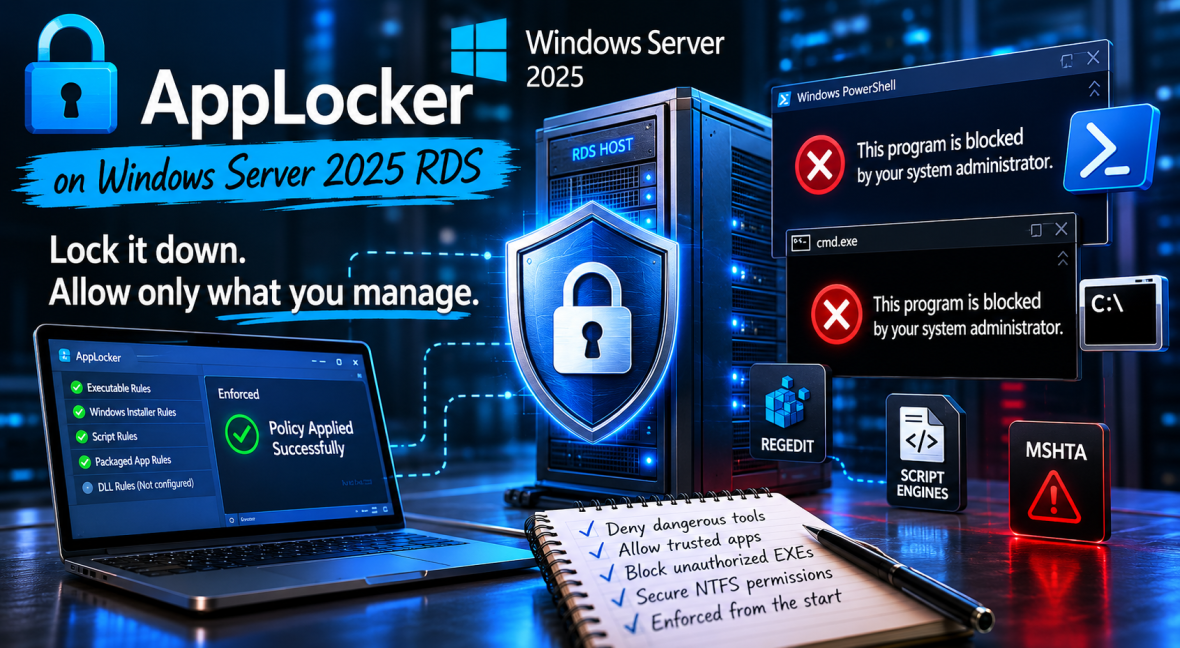
The recommended design was based on a classic allow-list approach: allow Windows, allow Program Files, allow a managed tools folder, and deny some obvious built-in tools such as CMD, PowerShell, WScript, CScript, MSHTA, and Regedit.
| Rule collection | Initial idea | Risk |
|---|---|---|
| Executable rules | Allow Windows, Program Files, administrators, and a managed tools folder | Broad path rules can be dangerous if users can write to the allowed path |
| Windows Installer rules | Allow administrators and Windows Installer cache | User-based installers may still need extra attention |
| Script rules | Allow Windows, Program Files, and trusted script paths | Scripts can still be launched indirectly if tooling is not controlled |
| Packaged apps | Leave default packaged-app behavior | Usually less urgent for this lab |
| DLL rules | Not configured at first | DLL enforcement can be noisy and needs careful testing |
Executable rules
Allow BUILTIN\Administrators -> *
Allow Everyone -> %WINDIR%\*
Allow Everyone -> %PROGRAMFILES%\*
Allow GG_RDS_AppLocker_RestrictedUsers -> C:\Tools\*

Deny GG_RDS_AppLocker_RestrictedUsers -> cmd.exe
Deny GG_RDS_AppLocker_RestrictedUsers -> powershell.exe
Deny GG_RDS_AppLocker_RestrictedUsers -> powershell_ise.exe
Deny GG_RDS_AppLocker_RestrictedUsers -> wscript.exe
Deny GG_RDS_AppLocker_RestrictedUsers -> cscript.exe
Deny GG_RDS_AppLocker_RestrictedUsers -> mshta.exe
Deny GG_RDS_AppLocker_RestrictedUsers -> regedit.exe
The initial executable rule set:

Windows Installer rules
Allow BUILTIN\Administrators -> *
Allow Everyone -> %WINDIR%\Installer\*
The Windows Installer rule collection:

Script rules
Allow BUILTIN\Administrators -> *
Allow Everyone -> %WINDIR%\*
Allow Everyone -> %PROGRAMFILES%\*
Allow trusted SYSVOL or logon script paths only
The script rule collection:

Packaged app rules
For packaged apps, I kept the default behavior for this first test. The focus of this lab was mainly EXEs, installers, and scripts. The packaged app rule collection:

Testing approach
For the test, I used two normal domain users: John Doe and Jane Doe. The idea was not to perform a full pentest, but to simulate realistic RDS user behavior:
- Can a user still run normal applications?
- Can a user launch CMD or PowerShell?
- Can a user download and install Chrome?
- Can a user bypass the policy by copying tools into an allowed folder?
Lab honesty: I enforced the rules immediately because I wanted quick results. In production, this should normally start in Audit mode first. That would let you collect AppLocker events before blocking users.
The policy was enforced directly for the test:

The RDS host received the policy:

Test 1 — MobaXterm gets blocked
First, John Doe logs in and tries to use MobaXterm. The application does not start and AppLocker blocks it:

The Event Viewer confirms the block as well:

This part semi worked. MobaXTerm was in our C:\Tools folder and should’ve ran in theory. but it seems that the .exe-tries to recreate a installer directory in the appdata of the user.
Test 2 — CMD is blocked, but PowerShell still opens
Next, John tries CMD. This time AppLocker blocks it correctly.

Then he tries PowerShell from the Start Menu.

The AppLocker event shows that PowerShell was allowed:

This is a red flag. The broad Windows allow rule includes the Windows PowerShell path, PowerShell will be allowed through the default Windows rule.
Important nuance: A correctly matching AppLocker deny rule should override an allow rule. So the real lesson here is not only “PowerShell is under Windows”, but also “verify that the deny rule actually applies to the tested user and that the executable collection is really enforced.”
Test 3 — Chrome installer from Downloads is blocked
Now Jane Doe logs in. Jane works in accounting and depends on different tools, plugins, browser compatibility workarounds, and the usual “this supplier portal works best in Chrome” type of problems.
She downloads Chrome and tries to run the installer from her profile.

This was a good result. Chrome is known for user-based installation scenarios, so I expected this test to be interesting. In this case, AppLocker blocked the installer before it could run from the user-writable location.
Test 4 — The C:\Tools bypass
Jane does not give up. She is told to copy the executable into the approved tools folder and run it from there.
This is where the policy starts to fall apart.
The installer runs from C:\Tools:

Luckily, this installer still triggers elevation, so Jane cannot complete this specific install without admin credentials. But the AppLocker part already failed: the executable was allowed to start because it was placed inside a trusted path.
Then Jane tries a portable application approach.


This works. Jane manages to get Chrome running through the allowed tools path.


At this point, the important question is no longer “can AppLocker block EXEs?” It clearly can. The better question is: how did Jane managed to get Chrome working?

Root cause 1 — The allow rule was too broad
The first big issue was this rule:
Allow GG_RDS_AppLocker_RestrictedUsers -> C:\Tools\*
A broad path allow rule is only safe if normal users cannot write to that path. In my case, the folder permissions looked safer than they actually were.
I had given Domain Users read and execute permissions:
LAB\Domain Users:(OI)(CI)(RX)But the folder still inherited extra permissions for BUILTIN\Users:
BUILTIN\Users:(I)(CI)(AD)
BUILTIN\Users:(I)(CI)(WD)
Those two entries matter:
AD= Append Data / Add SubdirectoryWD= Write Data / Add File
So even though LAB\Domain Users only had read/execute, the user was also a member of BUILTIN\Users, and that inherited permission allowed the user to create files in C:\Tools.
Lesson: AppLocker path rules and NTFS permissions must be designed together. If users can write to an allowed AppLocker path, they can usually run whatever they copy there.
Root cause 2 — PowerShell was covered by a broad Windows allow rule
The second issue was PowerShell. The default Windows allow rule is broad:
Allow Everyone -> %WINDIR%\*
PowerShell lives under the Windows directory:
C:\Windows\System32\WindowsPowerShell\v1.0\powershell.exeSo if the PowerShell deny rule does not correctly apply, PowerShell is allowed by the default Windows path rule.
Conclusion
The AI generated AppLocker policy was not useless. It blocked unmanaged executables from normal user locations and showed that AppLocker can absolutely be valuable on an RDS host.
But the policy was also not good enough. The broad C:\Tools\* allow rule became a bypass because users could write to that folder. PowerShell also showed why you should not blindly trust that a deny rule exists somewhere in a GPO; you need to verify the effective policy and test it with the actual user token.
The biggest lesson is this:
AppLocker is not just about creating allow rules. It is about creating allow rules for locations and publishers that users cannot abuse.
In Part 2, I will start from scratch, explain the do’s and don’t’s and come up with a full set of functional rule-sets.
But first: